
Part I · Fundamentals · Chapter 5
Your workspace: projects, autosave and .gph
Graphica has no Save button, and that is not an omission. Your projects live in the browser and are written continuously as you work. This chapter explains where they actually are, what that means in practice, and when you still want a file.
Projects are saved for you
Every change you make — an edited cell, a new encoding, a colour you nudged — marks the project as modified, and a save follows shortly afterwards. There is no state in which your work exists only on screen.
What gets written is the whole project: the data, every chart tab, and all their settings. Not a reference to the file you imported — the data itself. That is why a project keeps working after you have deleted the CSV it came from, and why moving a project between machines means moving one thing rather than two.
Where they live
In your browser's own storage, on your computer. Not on a server: nothing you load or build is uploaded anywhere. Graphica also asks the browser to treat that storage as persistent, so it is not discarded when space runs low.
The consequence is the part worth remembering:
Because projects are browser storage, anything that clears site data for graphica.app clears them too — the browser's "clear cookies and site data", some privacy extensions, and private or incognito windows, which discard everything when they close.
They are also per-browser and per-device: a project made in Firefox is not visible in Chrome, and a project made on your laptop is not on your phone. To move work, or to keep a copy you can rely on, download the project as a .gph file.
The workspace
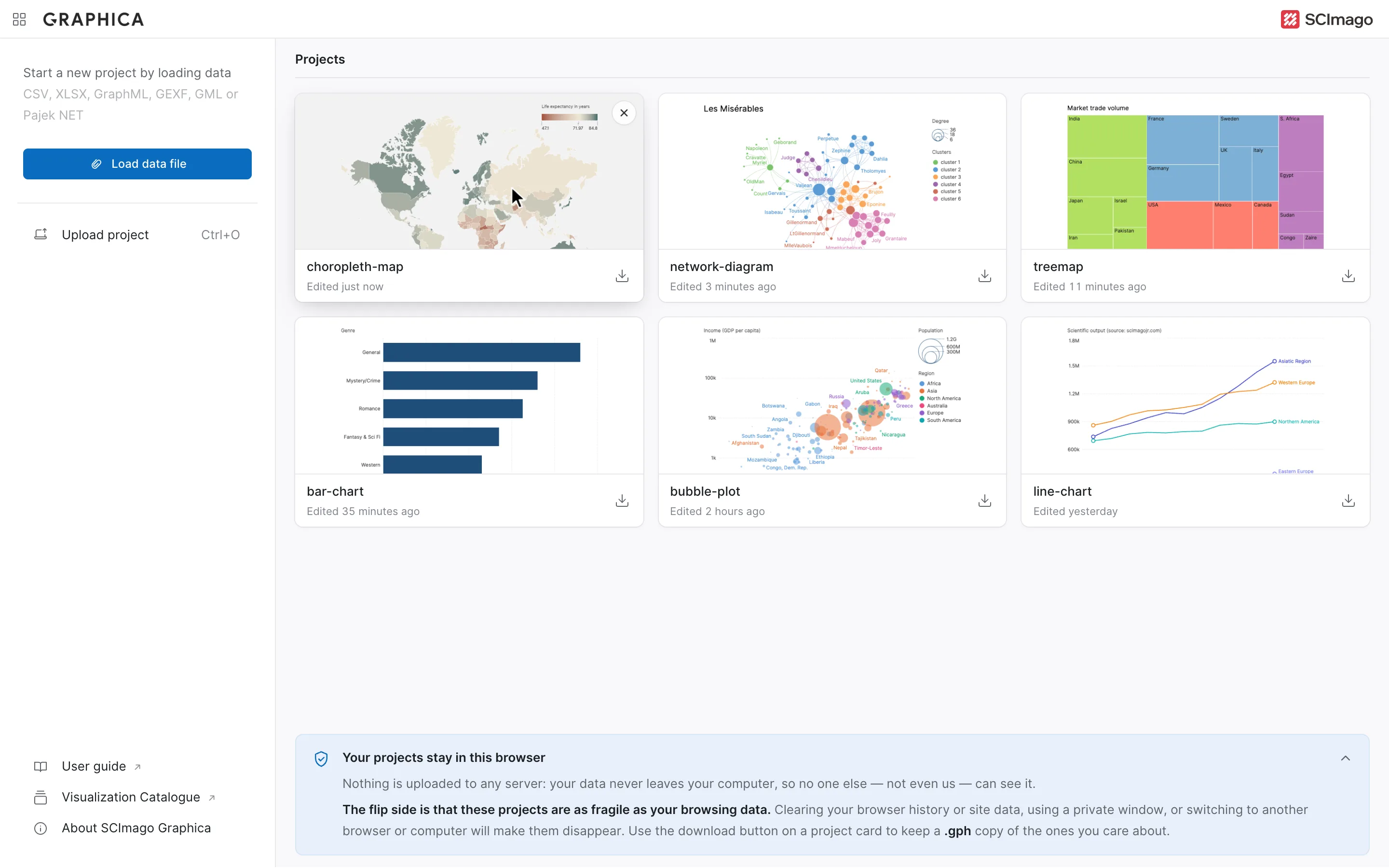
The workspace is the screen listing everything you have. Each project is a card carrying a preview of its chart, its name, and when it was last edited; the most recently edited come first. Click a card to open the project, the download button on it to save it as a .gph file, or the × that appears on it when you point at it to delete it — which asks for confirmation and cannot be undone. The grid icon at the far left of the toolbar brings you back here from any project.
The sidebar is where new projects start: Load data file and Upload project. At its foot are links to this User guide, the Visualization Catalogue and About SCImago Graphica.
Before you have made anything, the list reads Your projects will appear here.
The .gph file
A .gph file is a Graphica project as a single downloadable file: the data and every chart with all its settings. It is not the working format — the working copy is the one in your browser — but it is the format for everything that leaves the browser.
Use it to:
- Back up work you care about. The one guarantee against a cleared browser.
- Move between machines or browsers. Download on one, open on the other.
- Send a chart to someone. They get a project they can open and edit, not a picture. For a picture, see Exporting your visualization.
- Keep a version. Download before a big change and you have something to go back to.
Download project in the toolbar writes the file, and so does the download button on each workspace card. Opening one — with Upload project in the workspace, or by dragging it onto the app — loads it as a project in your workspace, alongside the others.
The project name in the toolbar is what the workspace card shows and what the downloaded file is called. Renaming the project does not rename any chart tab, and renaming a tab does not rename the project.
Undo, and what it does not cover
Undo steps back through your edits — up to thirty of them — and works across the data table and the charts alike. It is scoped to the project you are in.
What it does not reach is the workspace itself. Deleting a project is not an edit inside a project, so undo cannot bring it back. That is why the deletion asks first.
Where to go next
Your data is loaded, typed, and safely stored. Time to draw something: How to create a chart.